Publishing and delivery
Publish a report and share it
What happens when you hit Publish in InspectorKit, how the share link and PDF work, and how to update a report after it is out.
By Owen Murray, founder of InspectorKit · Updated July 6, 2026
Publish is the moment your working file becomes a deliverable. Here is exactly what happens and what you get.
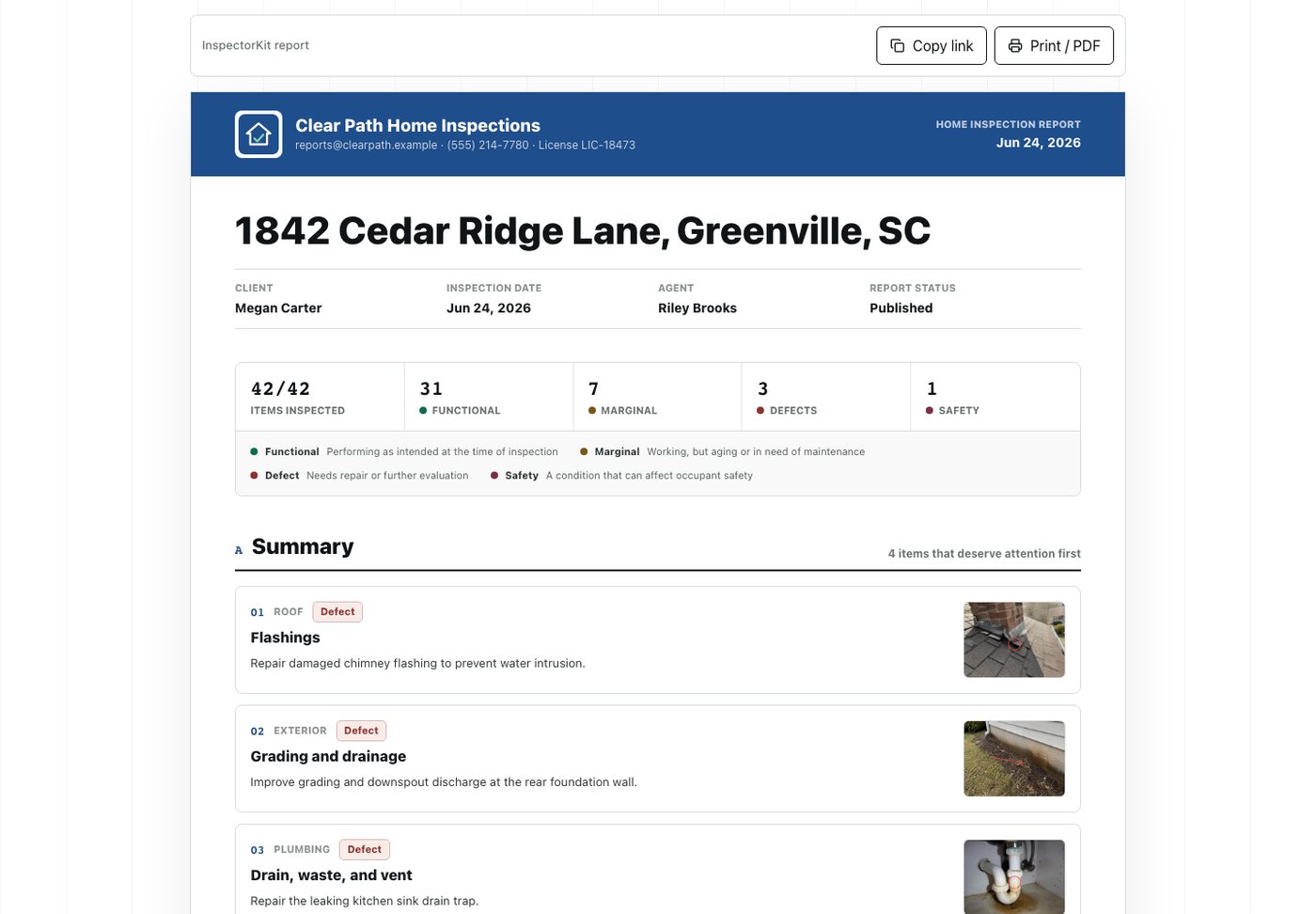
What Publish does
When you tap Publish, InspectorKit uploads your photos, assembles the summary from your findings, and mints a share link for the report. The button switches to Republish afterward, which is your edit-and-update path for corrections.
The published page is a clean web version of the report. Your branding sits at the top once you have added a logo, the summary of defects and safety items leads, and the full section-by-section detail follows. Photos appear with their annotations exactly where you drew them.
The share link
The link is unlisted and hard to guess, the same way a private video link works. Anyone holding it can view the report, which is precisely what you want for a client who will forward it to their agent, their lender, or a contractor pricing the repairs.
Copy it from the publish banner in the builder, or use the send panel to email it out under your business name without leaving the page.
The PDF
Open the published report and hit Print / PDF. The layout is print-tuned, so page breaks land between findings instead of through the middle of a photo. Clients who want a file for their records save it themselves, and you can save one for yours the same way.
Republishing after changes
Reports change. The seller's disclosure arrives late, a contractor corrects a detail, or you spot a typo an hour after sending. Edit the item in the builder and hit Republish. The existing link now serves the new version. Nobody needs a second email unless you want to send one.
One honest limitation to know about. Publishing needs a connection, because the link and photo storage live on the server. If you finish a report in a basement with no signal, everything waits safely on your phone, and the sync pill in the header tells you what is pending. Step outside, watch it flip to Synced, then publish. The offline field guide explains exactly how that safety net works.
Common questions
Can I edit a report after publishing?
Yes. Keep editing in the builder, then hit Republish. The same share link now serves the updated version, so anyone holding the link sees the current report.
Does my client need an account to view the report?
No. The share link opens in any browser with nothing to install and nothing to sign up for. The PDF comes from the Print / PDF button on that same page.
Why does publishing need signal?
Publishing creates the share link and uploads your photos to hosted storage, which requires a connection. Everything you wrote stays safe on your phone until you are back in coverage.