Publishing and delivery
Send a report to your client and agent
How report delivery works in InspectorKit, what the email looks like from the client's side, and what to check when something does not arrive.
By Owen Murray, founder of InspectorKit · Updated July 6, 2026
Publishing a report used to be where InspectorKit stopped and your email app took over. Now the last step lives where the work does. Once a report is published, a Send to client and agent panel appears right under the publish banner.
Sending in one pass
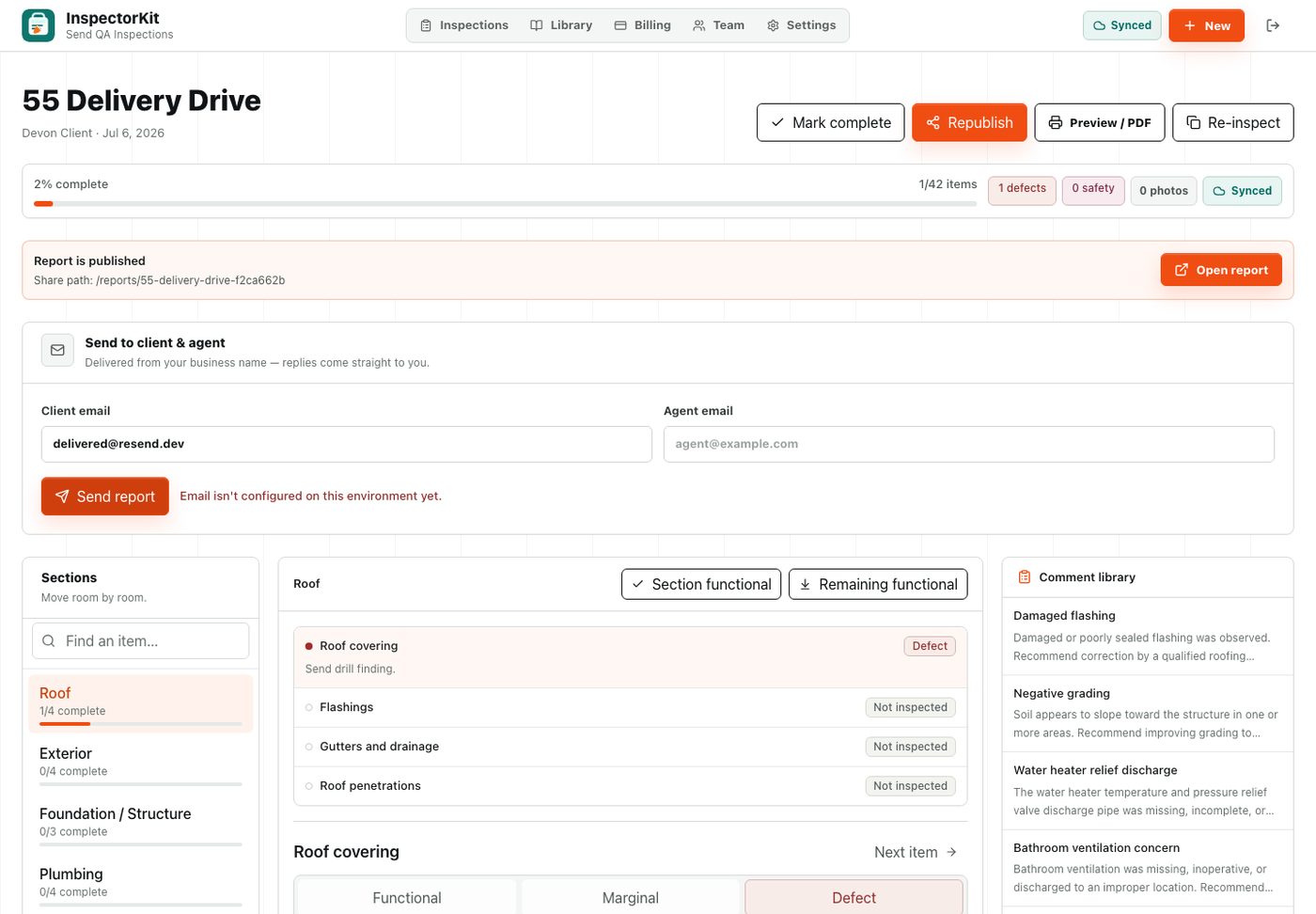
The two fields prefill from whatever you entered when you created the inspection. Check the addresses, adjust if needed, and hit Send report. Leave either field empty to skip that recipient. Both filled means both get their own copy, each worded for who they are.
The client version reads like a note from you, with a button to view the report in their browser and a line pointing out the Print / PDF option. The agent version is shorter and mentions the summary first, because the summary is what agents actually read.
What the email looks like from their side
The from line carries your business name. Replies land in your inbox, not a support queue. There is no InspectorKit branding anywhere in the message, no ads, and no pitch stapled to your work. The report link opens without any account or login on their end.
Below the send button you will see a delivery history for that report, so you always know who got it and when.
When something does not arrive
Email has moods. Work through these in order.
- Check the delivery history on the report. If the send is listed, InspectorKit handed it off successfully and the delay is on the receiving side.
- Ask the client to check spam and search for your business name.
- Confirm the address had no typo. A silent bounce usually means the address was wrong.
- Send again to a different address, or copy the share link from the publish banner and text it over. The link is the report. Email is just one way to carry it.
If a send genuinely failed, the panel says so in plain words instead of pretending it worked. And if you hit something confusing, email me and include the property address so I can trace it.
Common questions
Who does the email come from?
The from name is your business name, and replies go to your email address. InspectorKit's name does not appear in the message. Your client sees your brand, not mine.
Is there a send limit?
Each report can go out up to 10 times per day. That covers resends and corrections comfortably while keeping the system honest. Past that, share the report link directly.
Can I send to someone other than the client or agent?
Type any address into either field before sending. The fields prefill from the inspection details, but you can overwrite them.