Your setup
Branding your reports
Put your logo, business details, and brand color on every report, and see exactly where each one appears in what clients receive.
By Owen Murray, founder of InspectorKit · Updated July 6, 2026
The report is your product. When a buyer forwards it to their parents and an agent files it with the transaction, the document should say your name, not your software vendor's.
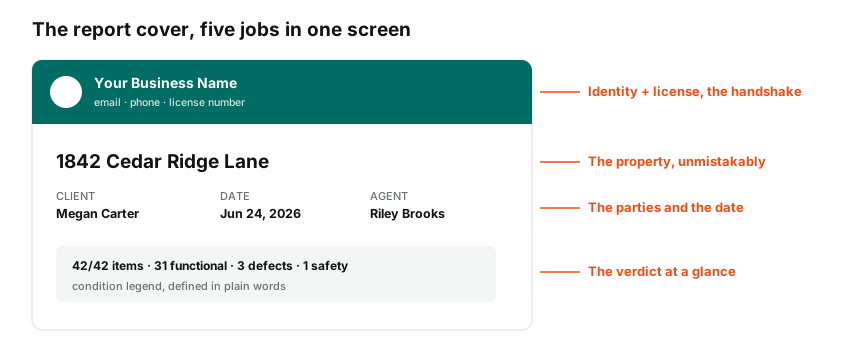
Branding lives in Settings, and every field lands somewhere visible.
What goes where
Your business name, phone, email, website, and license number print in the report header block on every published report. The client sees who did the work and how to reach you without scrolling.
The logo sits at the top of the report and on the web view your client opens. Upload once, and every report from that moment carries it. The upload takes the usual formats, and a transparent PNG comes out cleanest.
The brand color drives the cover band across the top of the published report. Pick something close to your existing brand, or if your brand is a logo on a white truck, pick the truck lettering color and the whole document suddenly matches your fleet.
Set it once, early
Branding is the second step on your dashboard checklist for a reason. It takes three minutes, and it converts every future report from generic to yours. Do it before your first real job, because the published report a client receives should never look like a trial run.
If you sent in a Done-For-You setup, branding arrives configured with the rest of your account, but it is still worth opening Settings once to confirm the details read exactly how you want them on paper.
Picking a color that works
The cover band needs to hold white text, so mid-tone and darker colors read best. Navy, deep green, brick red, graphite. If your logo is the colorful element, a restrained band color lets it lead. Squint at the published preview after saving, and if the header text fights the band, go one shade darker.
The quiet part
Some report platforms put their own branding on your deliverable, and a few have started putting other companies' ads inside client reports. InspectorKit puts your brand on your work and nothing else. There is no InspectorKit badge on your reports, no powered-by footer you have to pay to remove, and there will never be an ad stapled to a document that carries your license number.
Your reports also keep their branding in every export, so the PDF in your records folder matches what the client received.
Common questions
What logo file works best?
A PNG with a transparent background, the largest version you have. It gets scaled down cleanly for the report header, and transparent corners keep it looking sharp against your brand color band.
Can I change branding after publishing reports?
Yes. Republish any report after updating your branding and the live link picks up the new look. Saved PDFs keep whatever branding existed when they were printed.
Where does my license number show?
On the report cover area alongside your business details, which is exactly where agents and relocation companies look for it.