Your setup
Make the template match how you inspect
Add, rename, reorder, and remove sections and items in your report template, and what changes when you save.
By Owen Murray, founder of InspectorKit · Updated July 6, 2026
The stock residential template covers a normal house, roof to garage. It is also nobody's exact workflow. Maybe you inspect in a region where everything has a basement and nothing has a crawlspace, or you always check the sprinkler system and the template has no row for it.
The editor at Settings, then Report template, fixes that permanently.
What you can change
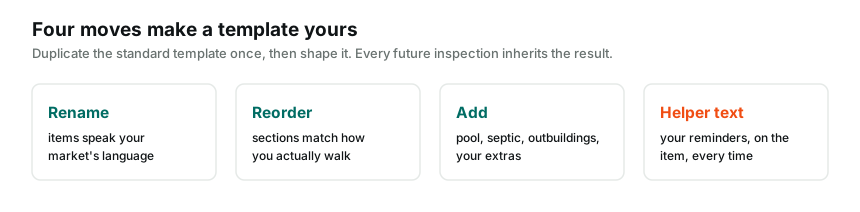
Everything structural. Add a section, rename one, drag its position up or down with the arrow buttons, or delete what you never inspect. Inside each section, items work the same way. Add, rename, reorder, remove.
Each item also takes helper text, the small gray line that appears under the item name in the builder. Use it for reminders to your future self. Things like check the data plate age or note panel manufacturer save you a mental checklist on site.
Saving and what it touches
The Save button writes the whole template at once. From that moment, every new inspection you create starts from your structure. Reports already in progress or published keep the shape they were born with, so nothing a client is holding ever changes under them.
This split matters for re-inspections too. A clone copies the original report's structure, not the current template, because the second visit needs to mirror the first.
Helper text is the sleeper feature
Most inspectors customize structure and skip helper text, then keep a checklist in their head anyway. Move the checklist into the template. Every reminder you type appears exactly where you need it, on the item, on every future job, without cluttering the published report. Clients never see helper text. It exists only for you in the builder.
A sane way to customize
Resist rebuilding everything on day one. Run two or three real inspections on the stock template first, and note where you fought it. The items you kept skipping, the section you wished existed, the order that made you walk the house backwards. Then open the editor and fix exactly those things.
Your template is also yours to take with you. The export page prints it as a clean PDF, numbered sections and all, which doubles as a training document if you ever bring on help.
When the structure is right, load your language into the comment library and the builder starts feeling like a tool you built for yourself.
Common questions
Do template changes affect reports I already created?
No. Existing reports keep the structure they were built with, which protects anything already sent to a client. Changes apply to every report you create after saving.
What if I break my template?
The Reset to standard template button restores the stock residential structure in one tap. Your existing reports are untouched either way.
Who can edit the template?
The business owner. Team members build reports with the template but do not change its structure.