In the field
The report builder, tour of every control
Sections, conditions, narratives, the comment library, bulk actions, dictation, and search. What each part of the InspectorKit builder does.
By Owen Murray, founder of InspectorKit · Updated July 6, 2026
The builder is three panels working together. Sections on the left, the current item in the middle, your comment library on the right. On a phone they stack vertically in the same order. This page walks the controls in the order you meet them on a job.
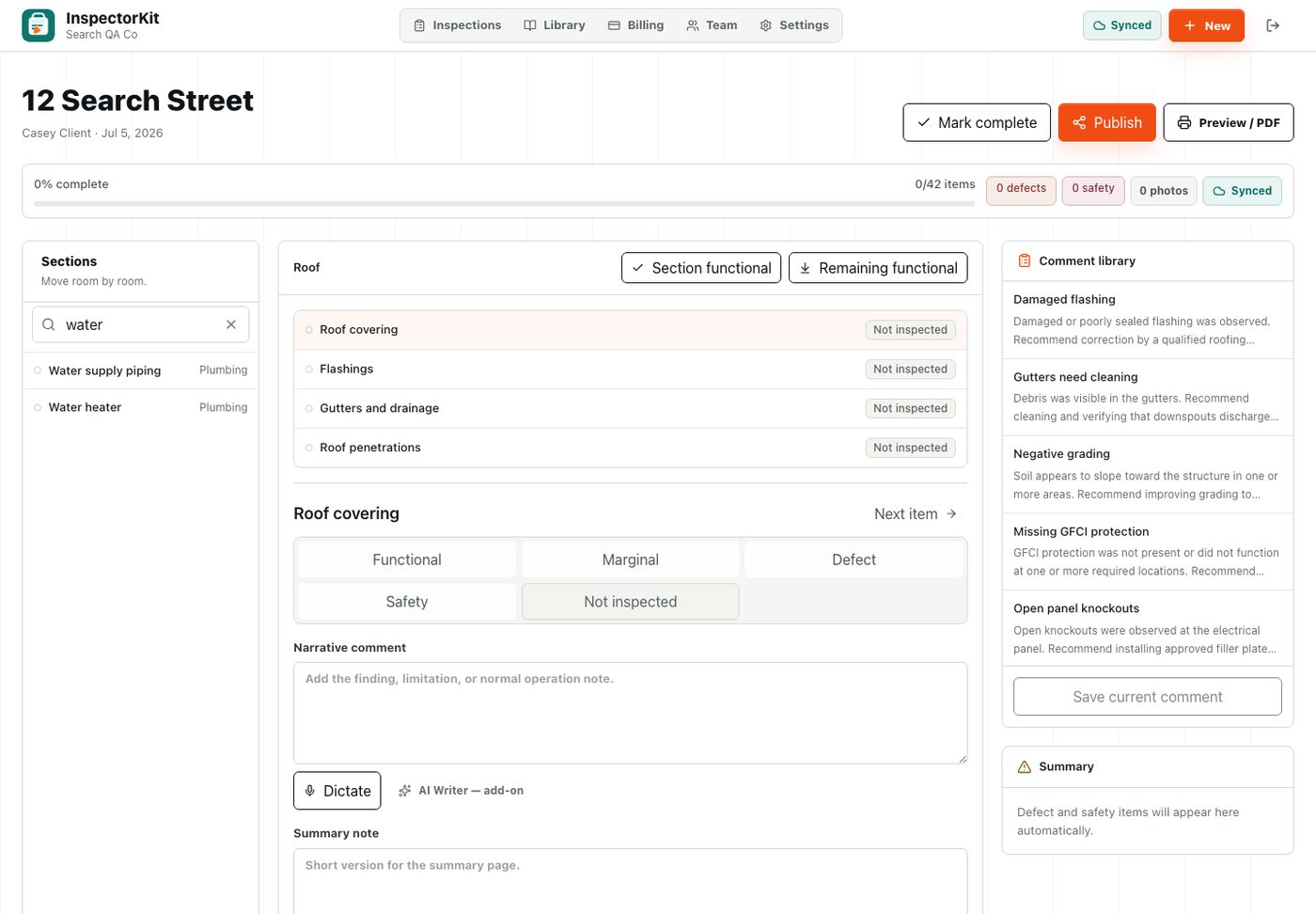
Sections and the find box
The left panel lists every section from your template with a progress bar under each. Tap a section to load its items.
Above the sections sits a find box. Type two or more letters and it searches every item across the whole report, which earns its keep on long templates. Type water and you get the water heater and supply piping from Plumbing without knowing which section holds them. Tap a result and the builder jumps straight there.
Items and conditions
Each item takes one condition. Functional, Marginal, Defect, Safety, or Not inspected. Tapping saves instantly, and the colored dot on the item list updates so you can scan a section and see its state at a glance.
Defect and Safety items feed the summary page on the published report automatically. That is why each item also carries a summary note field, the short version of the finding that agents and buyers read first.
Narratives and the comment library
The narrative field holds the full written finding. You can type it, dictate it with the mic button, or pull it from the comment library on the right.
The library ships with a starter pack of field-tested narratives organized by system and severity. One tap inserts the comment into the current item. Edit it in place to fit the actual house, and if the edited version is worth keeping, save it back with the Save current comment button. Over time the library becomes your voice, which is the entire point. Manage the whole collection from the Library page in the top navigation.
Photos and annotation
Every item accepts photos. After a photo lands, Annotate opens it with a drawing tool so you can circle the exact problem. The marked photo stays attached to that item and prints with the finding in the report.
The two bulk buttons
Real houses are mostly fine, and tapping 30 functional items one at a time is how software wastes your evening. Section functional marks every untouched item in the current section. Remaining functional does the entire report in one tap. Both only touch items still sitting at Not inspected, so your recorded findings are never overwritten.
The header while you work
Mark complete flags the inspection as done, Publish creates the shareable report, and the sync pill tells you where your data is at any moment. If you work through dead zones, the pill and its numbers are explained in the offline field guide. When the report is published, sending it out is covered in publish and share.
Common questions
What do the five conditions mean?
Functional means performing as intended. Marginal means working but aging or in need of maintenance. Defect means it needs repair or further evaluation. Safety flags a condition that can affect occupant safety. Not inspected covers items you could not access or chose to exclude.
Can I use my own wording instead of the library comments?
Always. Library comments insert as a starting point and stay fully editable. Save your edited version back to the library and your own language becomes the one-tap option next time.